
Before you start
- Windows 10 or 11.
- Python 3.11 or newer, with the Windows
pylauncher. - The application source folder containing
build.cmd,run.cmd, andpyproject.toml. - Genshin Impact in windowed or borderless mode.
- Internet access for initial dependency installation, wish syncing, and character showcase requests.
- The local reference index and resource data below for map tracking.
The default interface is Qt. Microsoft Edge WebView2 Runtime is needed only for the legacy webui command.
1. Build and launch
Open PowerShell in the application folder (apps\helper in the source repository). Run:
.\build.cmd
.\run.cmd
The first command creates .venv-ui, installs dependencies, and builds a Python wheel. The wheel is a Python package, not a standalone Windows installer; it does not contain the map datasets.
The second command launches the desktop interface. On later visits, run run.cmd again. start.bat is an alias.
Choose a particular Python installation
Before the first build, set the path to an installed interpreter:
$env:MAPHELPER_PYTHON = 'C:\path\to\python.exe'
.\build.cmd
This does not replace an existing .venv-ui environment.
2. Prepare map data
Map matching needs data\reference\s1z13, containing meta.json, index.npz, and raster.png. Resource display also needs the source 4 dataset under docs\maphelper\data\source4\teyvat, including label_tree.json and its POI files.
Building the app does not download these datasets. If you do not have them, obtain the matching data bundle from the project maintainer before using map tracking.
If you already have source 1 zoom-13 tiles
.\.venv-ui\Scripts\python.exe -B -m maphelper build-index --s1-tiles "C:\path\to\s1z13"Use another data location
.\run.cmd --reference "D:\MapHelper\reference\s1z13" --label-tree "D:\MapHelper\label_tree.json"The POI files must still be available in the expected source 4 layout. See .\run.cmd --help for current launch options.
3. Your first session
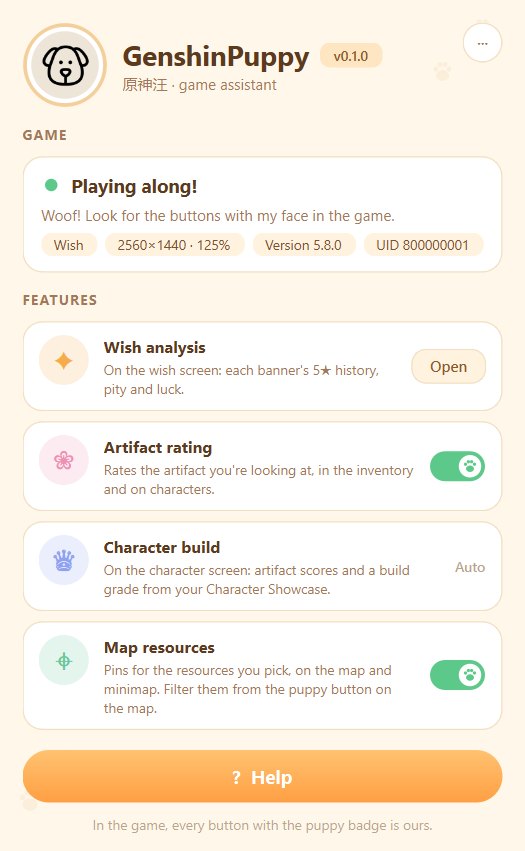
- Launch the app, then bring Genshin to the foreground. In the home window, grey means not running; yellow means background or minimised; green means ready in front.
- Open the map, wishes, character screen, or artifacts. Look for a button with the puppy badge near the bottom centre.
- Click the button to open its panel; click it again to close it. Artifact rating and map resources can also be switched off from the home window.
Wish history
Open Wish → History in Genshin once. Then open Wish Analysis and sync. If the temporary link expires, visit History again. Previously stored records remain on your PC; records outside the game service’s retention window cannot be recovered unless you already saved them.
Character builds
In Profile → Character Showcase, add the character and enable Show Character Details. Open that character’s screen and the Character Build panel. Showcase changes can take several minutes to appear through Enka.Network.
Artifacts and resources
View an artifact in the inventory or a character’s artifact list to see its rating. For resources, open the map and Resource Filter, choose a category, and select what you want to collect. Search supports English and Chinese.
Read the full illustrated guide for sharing, grades, rarity tiers, and achievements.
When something needs a nudge
Python or the environment is missing
Check that Python 3.11+ and the py launcher are installed. Run build.cmd before run.cmd. If package downloads fail, check your network, package-index access, and trusted certificates.
No buttons appear
Use windowed or borderless mode, keep the game in front, and open a supported screen. Check that the relevant feature is enabled. An unrecognised screen layout, language, or changed game UI may need updated recognition templates.
Map pins are missing or misplaced
Verify the index and resource files above, choose at least one resource, and check the Map resources switch. In the home window’s ⋯ menu, use Debug window or Run a diagnostic pass to investigate matching.
Wish sync cannot find a link
Reopen Wish → History in the running game and retry. HYE uses the local web cache; it cannot sync just from your UID. Never share the history URL or its authentication key in a bug report.
A showcase is empty or private
Enable Show Character Details and add the character to your showcase. Wait a few minutes before refreshing. Enka.Network availability and caching can also affect the result.
A score looks wrong
Let the artifact panel finish animating and check that the correct character is recognised. Scores depend on character stat weights and OCR; compare the displayed stats with the game. A score is a guide, not a damage simulation.
Reporting a problem
Give the maintainer your Windows version, app version, game language, resolution, display scale, feature, and steps to reproduce. Review diagnostic screenshots first and hide your UID, account details, and any temporary history URLs.
Keep your memories
Wish history, achievements, and build history are stored under %APPDATA%\gamehelper. Wish history uses UIGF. Share pictures are saved in Pictures\GenshinPuppy; open the exact folder from the home window’s ⋯ menu.
Close the app before copying its data folder as a backup. Keep your map data separately. After updating the source, rerun build.cmd when dependencies change; ordinary source edits take effect on the next launch.
Download the bilingual offline help pack. Unzip it and open en/index.html or zh/index.html.